Common Issues
Debugging SiteRM Issues
If you encounter failures or issues with SiteRM, this guide provides debugging steps and potential fixes.
SiteRM Frontend
SiteRM provides several ways to monitor your endpoints. Each SiteRM Frontend runs a Frontend Web UI. You can identify the Web UI URL from the Git configuration; for example, for Caltech see: FE-Config.yaml.
To access the SiteRM Frontend, you must have your Certificate DN whitelisted or valid OIDC authentication credentials.
- Certificate authentication (default): Access permissions are controlled in the GitHub repository for the FE: FE-Auth.yaml
- OIDC authentication: Contact your OIDC issuer or administrator to create an account or grant the required permissions.
SiteRM Frontend Web UI provides real-time monitoring of the site, including status, connectivity, and overall system health. Key features include:
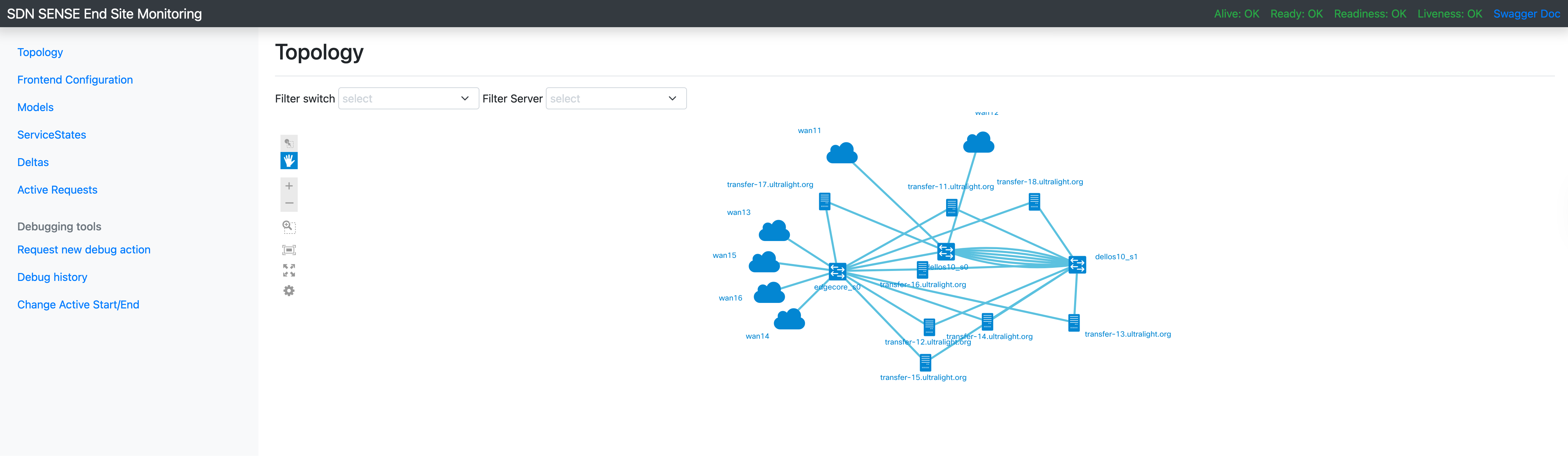
- Topology – Displays the current network topology, including all known switches, servers, enabled ports, and WAN connections.
- Frontend Configuration – Shows the current runtime configuration for the Frontend and registered agents. Allows reloading configuration from GitHub or deleting a host.
- Service States – Shows the status of each service running at the site.
- Models – Displays the latest site models in MRML, Turtle, and JSON-LD formats, representing site topology back to the SENSE Orchestrator.
- Deltas – Tracks all deltas submitted by the SENSE Orchestrator (e.g., create VLAN, remove VLAN, set IP).
- Active Requests – Shows active SENSE requests in JSON format.
- Debugging Tools – Allows on-demand diagnostics such as ping, traceroute, ARP, ethr, FDT, and iperf3 tests.
- Change Active Start/End – Adjusts start/end times for active SENSE requests, useful during site drain or cleanup.
The top-right corner of the Web UI shows system status, including Alive, Ready, Readiness, and Liveness. It also provides a link to Swagger documentation, Prometheus URL.
Autogole Monitoring and Slack Alerts
The SENSE team maintains Autogole monitoring, where each site has a dedicated dashboard and automated Slack alerts for site issues. All sites and their status can be viewed here: Autogole monitoring. For automated alerts, please join the following Slack channel
Access requires SENSE-O account, create one if needed.
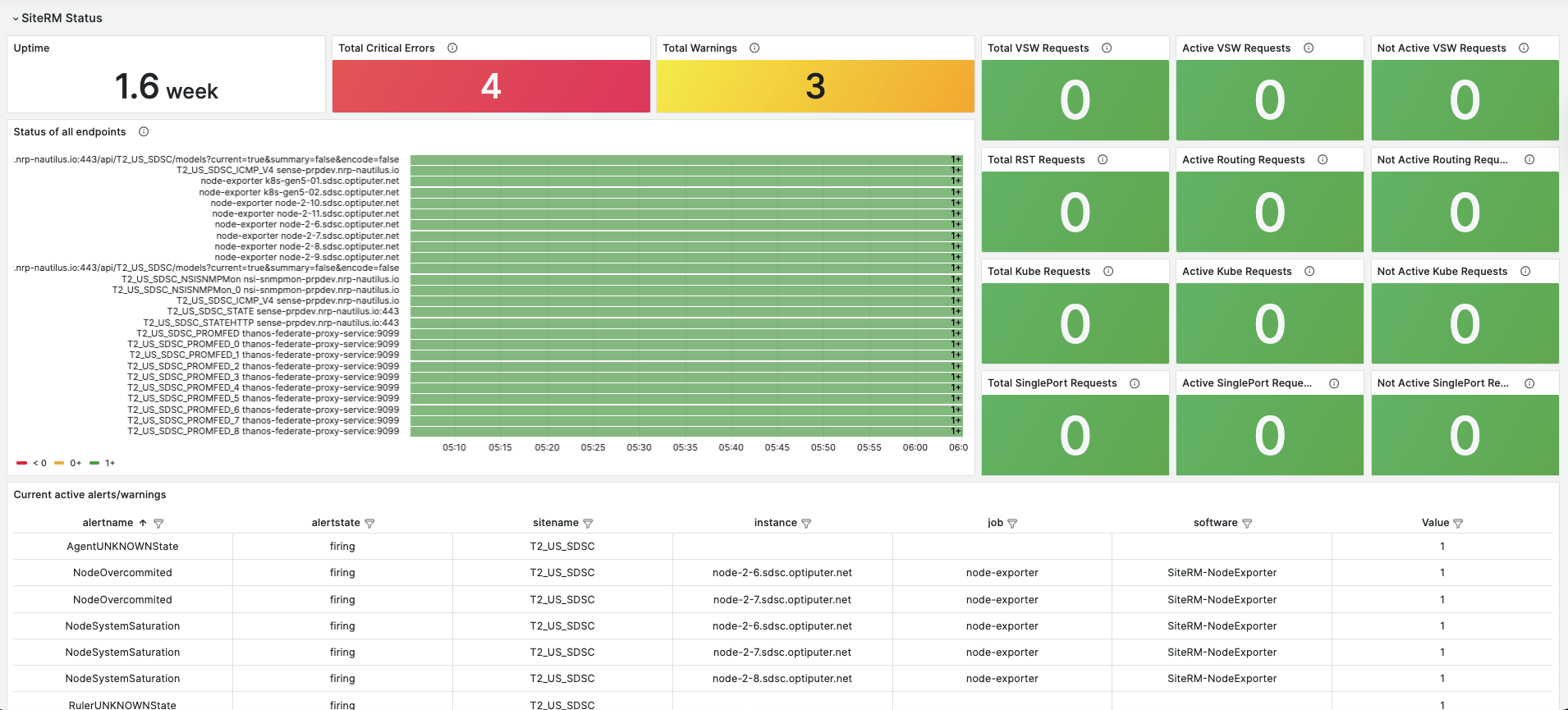
Some errors are described below, but not all. This documentation is continuously improved.
Kubernetes Installation Issues
Error INSTALLATION FAILED: create: failed to create: Request entity too large: limit is 3145728
Cause: The Helm chart or generated Kubernetes resources exceed the API server size limit.
Resolution is to use helm template and apply directly.
helm template ... | kubectl apply -f -
or:
helm template ... > deployment.yaml
kubectl apply -f deployment.yaml
Docker Startup Failure (Frontend)
ERROR: Configuration file ../conf/etc/ansible-conf.yaml was not modified. SiteRM will fail to start.
Cause: The configuration file has not been modified. Even in raw switch mode, this file must be edited.
Resolution: Ensure correct information is added to ansible-conf.yaml. See:
NetControl Ansible Documentation
PluginException: Interface Not Found
SiteRMLibs.CustomExceptions.PluginException: Interface enp1s0np0 was not found on the system. Misconfiguration
Cause: The interface is configured in rm-configs, but does not exist on the system.
Resolution
- Verify the interface exists on the system.
- Check for kernel updates that may have renamed the interface.
- Update the configuration and submit a pull request to rm-configs if needed.
Interface Down
Interface {interface} is not up. Check why interface is down.
Cause: The interface under SENSE control is down.
Resolution: Investigate and bring the interface back up.
Oversubscription Warning
Interface {key} has no remaining reservable capacity! Oversubscribed?
Cause: The node is oversubscribed due to too many requests.
Resolution: This is a warning. No new path requests can be provisioned until capacity is freed. Inform SENSE team about this.
VLAN Range Not Defined
Interface {key} has no VLAN range list defined!
Cause: The interface does not have a VLAN range configured.
Resolution: Define the VLAN range in the rm-configs file.
No Remaining VLANs
Error Message
No remaining VLANs in VLAN range list for interface {key}. All used?
Cause: All VLANs in the range are currently allocated.
Resolution: This is a warning. No new requests will be accepted.
VLAN Manually Configured
VLAN {vlan} is configured manually on {host}. It does not originate from a delta.
Cause: A VLAN allocated from the SENSE range was configured manually.
Resolution
-
Host: Delete manually configured VLANs:
ip link delete vlan.XXXX -
Switch: Remove the VLAN from the device configuration.
Check logs why deletion failed:
- Host:
/var/log/siterm-agent/Ruler/api.log - Switch:
/var/log/siterm-site-fe/{LookUpService,ProvisioningService}/api.log